Ultimate Guide to Free Collaboration Tools 2025
Looking for free tools to streamline teamwork in 2025? With remote work more common than ever, startups and small teams need reliable platforms that won’t break the bank. This guide covers the top free collaboration tools, their key features, and limitations to help you choose the right fit for your team.
Key Highlights:
- Slack: Great for team communication with unlimited channels but a 90-day message history limit.
- Trello: Ideal for visual task management with 10 boards and unlimited cards.
- Google Workspace: Offers real-time document editing and 15 GB shared storage.
- Zoom: High-quality video calls for up to 100 participants but capped at 40 minutes.
- ClickUp: All-in-one workspace with unlimited tasks and members but limited storage (100 MB).
Quick Comparison:
| Tool | Best For | Key Free Features | Limitations |
|---|---|---|---|
| Slack | Communication | Unlimited channels, 1:1 Huddles | 90-day message history |
| Trello | Task Management | 10 boards, unlimited cards | No Timeline/Calendar views |
| Google Workspace | Document Collaboration | Real-time editing, 15 GB storage | Limited admin controls |
| Zoom | Video Conferencing | HD video, breakout rooms | 40-min meeting cap |
| ClickUp | All-in-One Workspace | Unlimited tasks/members | 100 MB storage |
Pro Tip: Start with free plans to test functionality, and upgrade only if needed. Most tools offer scalable options to grow with your team. Keep reading for detailed reviews and practical tips to maximize these tools.

Free Collaboration Tools Comparison 2025: Features and Limitations
10 Best Team Collaboration Tools 2025 Review
Comparison Table of Top Free Collaboration Tools
When deciding on a collaboration tool, it's essential to weigh the features each one offers. For instance, Slack provides unlimited channels but only keeps a 90-day message history on its free plan. Google Workspace includes 15 GB of shared storage (across Gmail and Photos) and real-time co-editing, making it a solid choice for collaborative work. In the realm of video conferencing, Zoom supports up to 100 participants but caps group meetings at 40 minutes, whereas Google Meet extends that limit to 60 minutes.
For visual task management, Trello allows 10 boards per workspace and unlimited cards, while Asana supports up to 10 users with unlimited tasks and projects - ideal for small teams working on strategic plans. ClickUp stands out with unlimited tasks and team members on its free tier, though it limits storage to 100 MB. Meanwhile, Notion provides unlimited blocks for individuals but restricts file uploads to 5 MB, making it great for wikis and knowledge bases but less practical for sharing large files. The table below highlights these tools' free features for easy comparison.
| Tool | Best For | Key Free Features | Limitations | User Limits |
|---|---|---|---|---|
| Slack | Team Communication | Unlimited channels, 10 integrations, 1:1 Huddles | 90-day message history | Unlimited users |
| Trello | Visual Task Management | 10 boards, unlimited cards, unlimited Power-Ups | No Timeline/Calendar views | 10 users per workspace |
| Google Workspace | Document Collaboration | Real-time co-editing, Meet (100 participants) | 15 GB shared storage | Unlimited users |
| Zoom | Video Conferencing | HD video, breakout rooms, screen sharing | 40-minute limit on group calls | 100 participants |
| Asana | Strategic Planning | Unlimited tasks/projects, 3 views (List, Board, Calendar) | No project dashboards | Up to 10 users |
| Notion | Knowledge Base/Wikis | Unlimited blocks (individual), 10 guest invites | 5 MB file upload limit | 1 user + 10 guests |
| ClickUp | All-in-One Workspace | Unlimited tasks/members, Sprint management | 100 MB total storage | Unlimited users |
| Miro | Visual Brainstorming | 3 editable boards, 2,500+ templates | Limited advanced analytics | Unlimited (on 3 boards) |
| Dropbox | Secure File Sharing | 30-day version history, 3-device sync | 2 GB storage limit | 1 user |
| Microsoft Teams | Enterprise Communications | Chat, file sharing, 60-minute meetings | Limited features vs. paid plans | 5 GB (via OneDrive) |
This table gives a clear snapshot of what each tool offers, helping teams pick options that align with their budget and collaboration needs.
What to Compare
When evaluating these tools, focus on three critical factors:
- Functionality: Does the tool meet your core needs like messaging, file sharing, or task tracking? For example, Slack excels in communication, while Trello shines in task visualization.
- Scalability: Some tools, like Asana, limit free users to 10, while others, such as Slack and ClickUp, allow unlimited users.
- Usability: Consider practical restrictions, like Zoom's 40-minute meeting cap or Dropbox's 2 GB storage limit, to determine if the tool fits your workflow.
Detailed Reviews of Popular Free Collaboration Tools
Now that you've checked out the comparison table, let’s take a closer look at each tool.
Slack: Team Communication Platform
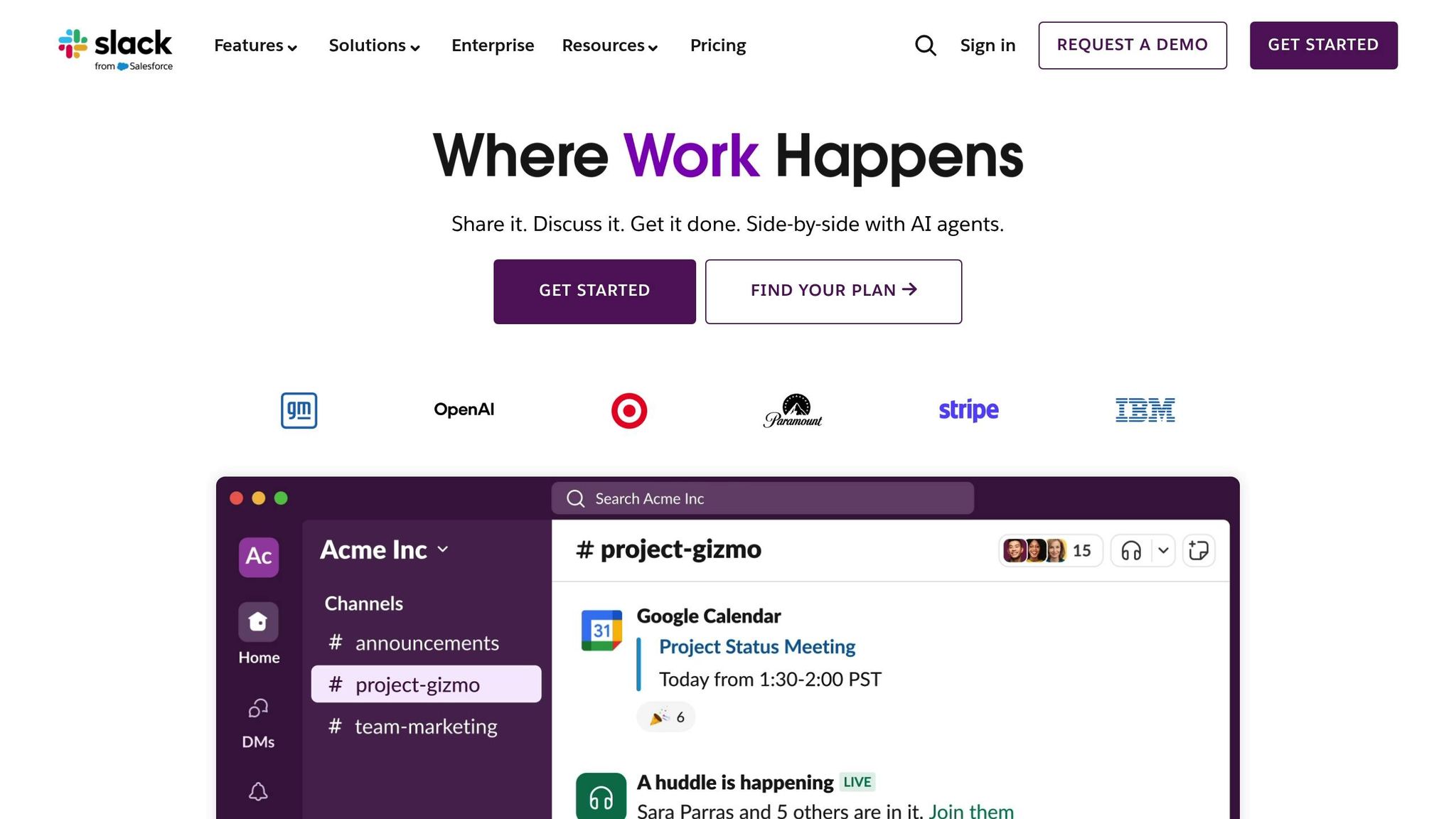
Slack is a go-to tool for keeping team communication organized and cutting down on email overload. With over 38 million active users worldwide, Slack helps teams organize conversations into channels - dedicated spaces for projects, departments, or specific topics. On the free plan, you get unlimited channels and 1:1 video calls (called "Huddles"), but the catch is that only the last 90 days of message history are retained.
One of Slack's standout features is its ability to integrate with over 2,600 apps, making it a great hub for connecting all your tools. As Brad Lightcap, COO of OpenAI, puts it:
"Slack is central to how our company collaborates, for increasing velocity, and is integral to building with our customers. We use Slack every day".
The numbers back this up: 89% of users report better team communication, and 86% say it improves remote work capabilities. However, some users complain about notification overload, even though Slack holds a strong 4.5/5 star rating on G2 based on more than 32,000 reviews.
| Pros | Cons |
|---|---|
| Reduces email clutter by centralizing communication | Free plan limits message history to 90 days |
| Integrates with 2,600+ apps for seamless workflows | Notification overload can be an issue |
| Flexible messaging for real-time or asynchronous work | Free plan allows only 10 integrations |
| Searchable archives make finding information simple | Can feel overwhelming for new users |
Next up, let’s explore Trello’s visual approach to managing tasks.
Trello: Visual Task and Project Management
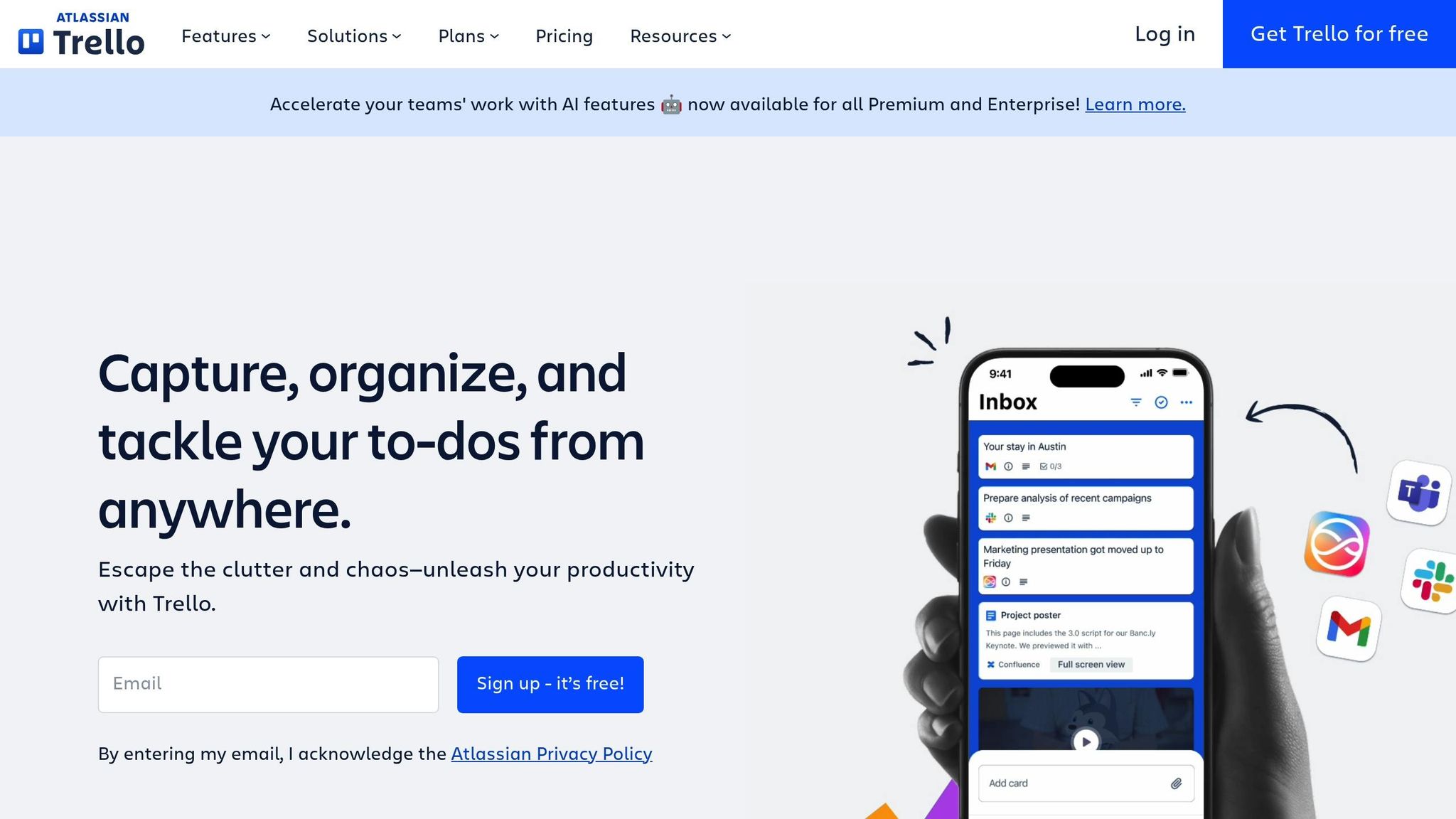
Trello uses a Kanban-style system to help teams manage projects visually. Boards represent projects, lists represent stages like "To Do", "In Progress", and "Done", and cards represent individual tasks. The free plan includes 10 boards per workspace and unlimited cards, making it a solid choice for small teams juggling multiple projects.
Its intuitive, drag-and-drop interface makes Trello easy to learn. You can assign tasks, set deadlines, attach files, and leave comments - all directly on the cards. Trello has earned a 4.4/5 star rating on G2, based on 13,000+ reviews. While users love its simplicity, some feel the free plan lacks advanced features like reporting.
Trello’s "Power-Ups" let you add integrations with tools like Google Drive and Jira. However, the free plan limits you to one Power-Up per board, and there’s no built-in Timeline or Calendar view for long-term planning.
| Pros | Cons |
|---|---|
| Easy-to-use, visual interface | Free plan limits you to 10 boards per workspace |
| Drag-and-drop task management | No Timeline or Calendar view on free tier |
| Unlimited cards and collaboration features | Only one Power-Up per board on free plan |
| Mobile app keeps teams connected on the go | Lacks advanced reporting tools |
Google Workspace: Real-Time Document Collaboration
Google Workspace (Docs, Sheets, Slides, and Meet) has become the gold standard for real-time collaboration on files. Multiple people can work on the same document simultaneously, with changes appearing instantly. Personal Google accounts come with 15 GB of free shared storage across Gmail, Drive, and Photos - enough for many small teams.
Since it’s cloud-based, everyone always works on the latest version of a file, eliminating version conflicts. Google Meet, included in the free plan, supports up to 100 participants for 60-minute meetings, making it perfect for team discussions.
The main downside? You’ll need a stable internet connection to get the most out of it. While offline modes are available, they’re not as reliable as desktop software. For businesses needing more storage or advanced admin features, the Business Starter plan starts at $6–$7 per user per month.
| Pros | Cons |
|---|---|
| Real-time co-editing avoids version issues | Full functionality requires internet access |
| 15 GB of free storage across Google services | Limited admin and security controls on free plan |
| Integrates seamlessly with Gmail and Calendar | Syncing delays can happen occasionally |
| Google Meet supports 100 participants for 60 minutes | Free storage fills up quickly with large files |
Zoom: Video Conferencing and Screen Sharing

Zoom is widely recognized for delivering high-quality video and audio, even on slower connections. Its free plan allows up to 100 participants, offers HD video, screen sharing with annotation tools, and breakout rooms for smaller group discussions. With a 4.5/5 star rating on G2 based on 56,000+ reviews, it’s a top choice for virtual meetings and team check-ins.
One of Zoom’s biggest strengths is its ease of use - external guests can join meetings with just one click, no account needed. The main limitation is the 40-minute cap on group meetings with the free plan. For longer sessions, the Pro plan ($13.32 per user per month) removes this restriction.
| Pros | Cons |
|---|---|
| HD video quality works well across various speeds | Free group meetings capped at 40 minutes |
| Breakout rooms for smaller group discussions | Can strain older devices |
| Screen sharing with annotation tools | Advanced features require paid plans |
| Easy guest access without an account | Enhanced security features only available in paid plans |
Notion and ClickUp: Custom Workspace Builders
Notion and ClickUp let teams build tailored productivity systems. Notion combines notes, databases, wikis, and more into a single workspace. Its free plan offers unlimited blocks for individuals and 10 guest invites, though file uploads are capped at 5 MB. With a 4.7/5 star rating on G2, users love its versatility, though it has a steep learning curve.
ClickUp, on the other hand, provides a more structured approach with over 20 project views, including Gantt charts, Kanban boards, and Calendar layouts. Its "Free Forever" plan is surprisingly generous, offering unlimited tasks, unlimited members, and built-in time tracking, though storage is capped at 100 MB. ClickUp has earned a 5/5 rating from TechRepublic and is praised for its functionality, despite criticism of its cluttered mobile app.
Both platforms are excellent for startups that want highly customizable solutions. Plus, their extensive template libraries can help you hit the ground running.
sbb-itb-4f1eab7
DashK12: Education and Business Resources for Teams
Managing tasks is one thing, but building professional skills and fostering growth is another challenge entirely. While free tools can help with organization, they often fall short when it comes to developing the expertise teams need to thrive. That’s where DashK12 steps in - a platform designed to enhance your current collaboration tools by offering educational and business resources that help unlock real potential.
What DashK12 Brings to the Table
DashK12 fills the gaps left by basic task management tools with a range of resources aimed at professional growth. These include:
- Self-paced courses: Perfect for teams working across time zones, these courses allow members to build skills on their own schedules.
- Job interview training: Sharpen your hiring process to bring the right talent onboard.
- Customizable slide decks: Create polished, professional presentations without starting from scratch.
- E-books: Dive into a variety of business topics to broaden your team's knowledge base.
For teams looking for more hands-on support, DashK12 also offers business consulting and marketing services, bridging the gap between daily operations and strategic growth. Additionally, their Career and Technical Education (CTE) resources provide targeted skill development for technical roles, making it a well-rounded solution that complements tools like Slack and Trello.
Why DashK12 Works for Startup Teams
Startups often face the dual challenge of staying productive while upskilling their team members. DashK12’s self-paced courses make it easy to grow skills asynchronously, ensuring learning doesn’t disrupt day-to-day operations. Tools like customizable slide decks and job interview training also help streamline presentations and hiring, which are critical as teams scale.
What sets DashK12 apart is its ability to act as a strategic partner alongside your collaboration tools. While platforms like Trello and Slack help you organize tasks, DashK12 ensures your team executes those tasks effectively and with purpose. By combining business consulting with project management tools, DashK12 provides a seamless connection between strategic advice and daily execution. This approach ensures your team isn’t just working hard - they’re working smart and moving in the right direction.
How to Choose the Right Free Collaboration Tool
Finding the perfect collaboration tool can make a world of difference for your team. With 74% of executives stating that poor communication slows down both the speed and quality of work, it's clear that the right solution isn't just nice to have - it's a game-changer. The great news? Free tools can provide real value if you choose wisely.
Questions to Ask Before Choosing
Start by pinpointing your team's specific needs. Are you trying to fix a communication gap, or is task management your biggest hurdle? For teams that need real-time messaging, Slack might be the answer. On the other hand, if you're drowning in scattered tasks, Trello's visual boards or ClickUp's all-in-one workspace could be better fits.
Next, consider user limits. Will the tool grow with your team? Make sure the platform can handle your anticipated team size. One startup founder shared their perspective on G2:
"I look for platforms that make it easy to add new users and features as we grow. It's also a bonus if the pricing is flexible, so I'm not paying for things I don't need until I really need them".
Don’t overlook integration. The tool should work seamlessly with your existing email, calendar, and file storage systems. For instance, Slack offers a wide range of integrations. Also, prioritize security. Even free plans should include essentials like two-factor authentication (2FA), data encryption, and compliance with standards like GDPR or SOC 2. These features ensure your data stays safe.
By asking these questions, you'll be better equipped to choose a tool that meets your team's goals and keeps your operations running smoothly.
Getting the Most from Free Tools
After selecting a tool that fits your needs, focus on maximizing its free features. Be aware of any limitations, such as meeting time caps or storage restrictions, and plan for workarounds. For example, you can archive older projects as ZIP files to free up space or split your storage needs across multiple platforms. Use Google Drive for active documents and another service for larger media files.
To keep everything organized, designate a central repository - like a shared Google Drive folder or a Notion page - where your team can find all project links and key documents. This eliminates the frustration of hunting through multiple tools for the same file.
Here's a motivating stat: the average payback period for collaboration tools is just 10 months. Even small improvements in efficiency can quickly make these tools worthwhile. By selecting a tool that aligns with your workflow and fully leveraging its free features, you'll set your team up for success without stretching your budget.
Conclusion
Free collaboration tools have become a lifeline for modern teams, especially for startups operating on tight budgets. According to research, 89% of users report better team communication when using dedicated collaboration platforms, and tools like Slack can boost employee engagement by 36%. On the flip side, knowledge workers often switch between apps up to 1,200 times a day, resulting in over 4 hours of lost productivity every week. This makes streamlined collaboration tools not just helpful, but essential.
The tools highlighted in this guide offer a range of free features that pack a punch. Whether it’s Slack for instant messaging, Trello for visual task management, or Google Workspace for seamless document sharing, there’s something here for every team. If video calls are your priority, Zoom provides free 40-minute meetings, while ClickUp offers an all-in-one workspace with its "free forever" plan that includes unlimited tasks. These platforms are designed to fit into your team’s workflow without adding to your expenses.
For teams looking to go beyond just tools, DashK12 offers resources like business consulting, job interview training, and self-paced courses. These services focus on building the skills teams need to work effectively together, complementing the tech stack by addressing the human side of collaboration.
To get started, keep it simple: use Google Drive for file storage, Slack for communication, and either Trello or ClickUp for task tracking. Don’t forget to enable two-factor authentication, organize files with clear naming conventions, and review your usage monthly to stay within the free tiers. Even small improvements in efficiency can make a big difference over time.
FAQs
How can I choose the best free collaboration tool for my team?
To choose the best free collaboration tool for your team, start by pinpointing what matters most to your workflow. Do you need video meetings, file sharing, task management, or real-time communication? Some tools excel in specific areas, like video calls, while others are built around features like task boards or cloud storage.
Think about your team size and the complexity of your projects. Smaller teams might lean toward simple messaging tools, while larger teams often benefit from platforms that combine features like chat, document sharing, and project tracking into one hub. It's also smart to check if the tool works seamlessly with the software you’re already using - this can save time and make onboarding easier.
Be sure to review any limitations in the free version, such as storage caps, user limits, or missing functionalities. If you're an educator or part of a CTE program, platforms like DashK12 can offer free resources specifically tailored for collaboration and lesson planning. Testing a few tools on a small project can give you a clearer picture of which one fits your team’s needs best.
What are the key drawbacks of free collaboration tools?
Free collaboration tools can be a helpful starting point, but they often come with strings attached, especially as teams expand. Common challenges include limited features, restricted integrations, and user caps, making it tough to scale effectively. On top of that, these free plans rarely offer advanced security measures like encryption or compliance certifications, leaving sensitive data exposed to potential risks.
Another downside? Most free tools lack dedicated customer support, meaning you're often left to troubleshoot problems on your own. Teams might also struggle with reduced personal interaction since everything happens digitally, and unreliable internet connections can throw a wrench in workflows. While these tools are convenient, their shortcomings can become roadblocks for larger teams or more demanding projects.
Can free collaboration tools grow with my team?
Free collaboration tools can be a lifesaver for small teams, but they often come with limitations that might hold you back as your team grows. Common restrictions include caps on the number of users, limited storage space, or reduced access to advanced features. As your team’s needs expand, these constraints can start to hinder productivity.
If you’re planning for growth, it’s worth exploring tools with free plans that offer more flexibility. Some platforms provide scalable options, but many free tiers are designed primarily for early-stage teams. Once your team outgrows the free version, DashK12 offers resources and consulting services to guide you through upgrading or transitioning to a solution that better supports your growing needs.